How to Upload Plate Number in LTO: Complete Step-by-Step Guide for 2026
The Philippine Land Transportation Office now lets you upload your plate number online instead of waiting in long lines. This service saves you hours and lets you update your records from home.
According to the LTO’s 2025 annual report, over 1.2 million motorists used the online portal last year. That number keeps growing every month. The process takes about 10 to 15 minutes once you know the steps.
This guide shows you exactly how to upload your plate number through the LTO Portal. You’ll learn what documents you need, how to avoid common mistakes, and what to do if something goes wrong. By the end, you’ll be ready to complete the process without any help.
What Does It Mean to Upload Your Plate Number in LTO?
Uploading your plate number means entering your vehicle’s license plate details into the LTO’s digital database. This connects your plate number to your registration records and helps the government track vehicle ownership.
The system lets LTO verify your vehicle information faster. When traffic enforcers scan your plate, they can instantly see if your registration is current. This also helps with toll payments and parking systems that read license plates automatically.
You need to upload your plate number after you get new plates or when you update your vehicle registration. Some people also do this when moving to a new address or transferring vehicle ownership.
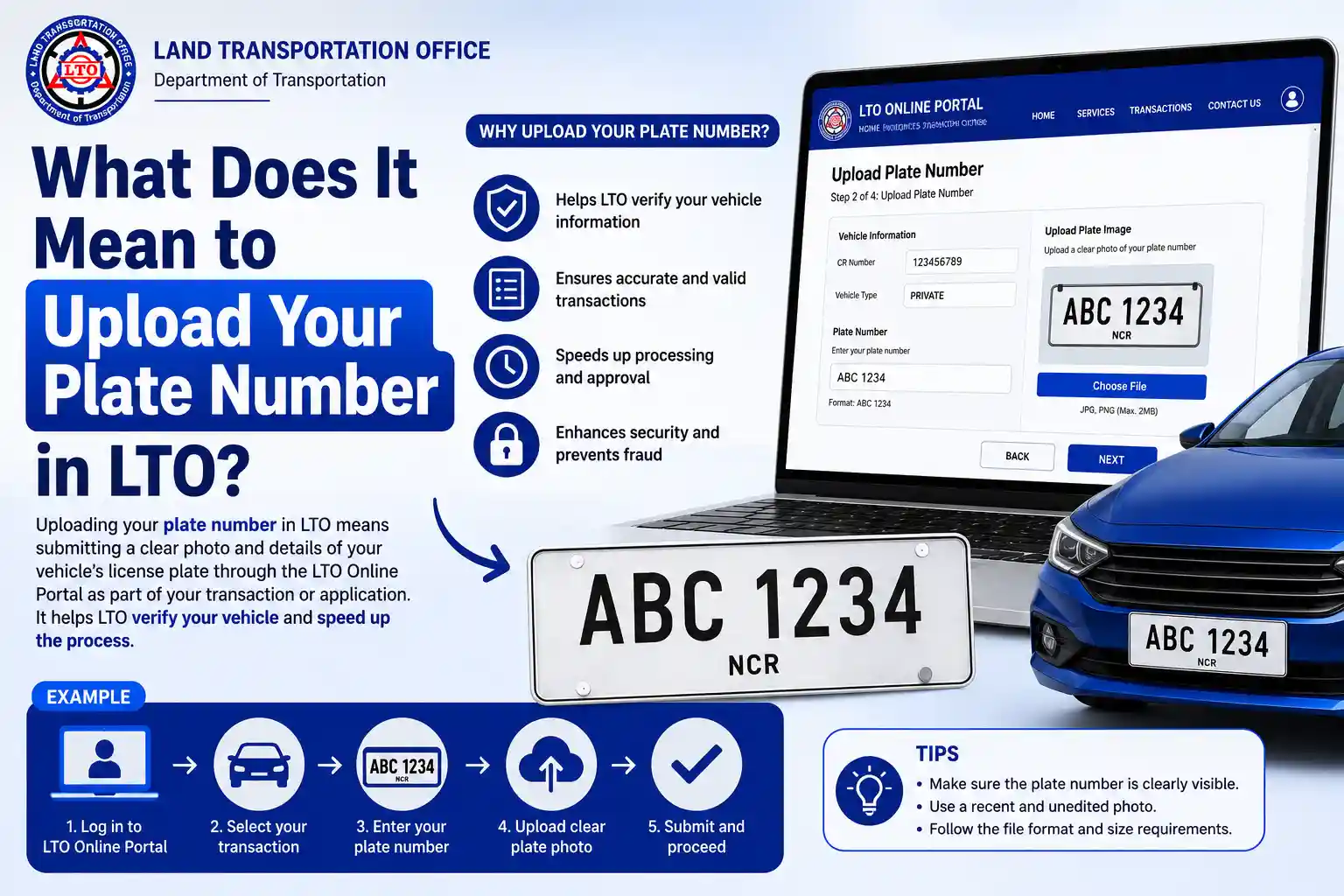
Why Is Uploading Your Plate Number Important?
Your plate number links directly to your vehicle’s legal status. Without it properly registered in the system, you might face problems during traffic stops or when renewing your registration.
The LTO uses this information to send you renewal reminders and important notices. If your plate number isn’t in the system, you won’t get these updates. That could lead to expired registration and fines.
Here’s what happens when your plate number is properly uploaded:
- Traffic enforcers can verify your registration instantly
- You get automatic renewal reminders via email or SMS
- Toll systems can charge your account correctly
- Insurance claims process faster with verified plate data
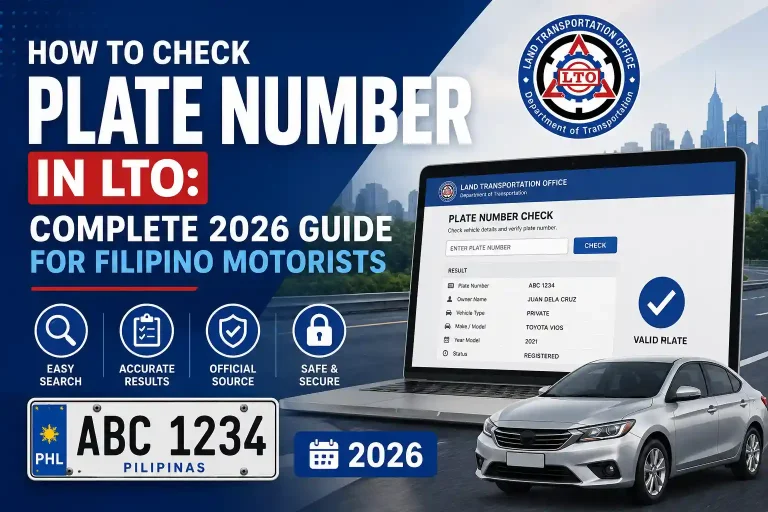
- You can use the how to check plate number in lto service anytime
The system also protects you from plate duplication fraud. When your plate is properly registered, someone can’t claim your plate number for another vehicle.
What Are the Requirements to Upload Your Plate Number?
You need specific documents and information before starting the upload process. Having everything ready saves time and prevents errors that could delay your application.
First, you need your Official Receipt and Certificate of Registration. These prove you own the vehicle and that your registration is current. You also need a valid government ID that matches the name on your registration.
Here’s the complete list of requirements:
| Requirement | Details | Where to Get It |
|---|---|---|
| Official Receipt (OR) | Current OR from your latest registration | LTO office or through LTO portal |
| Certificate of Registration (CR) | Valid CR showing vehicle details | Issued during registration |
| Government ID | Valid Philippine ID with photo | Any government agency |
| Plate Number | Complete alphanumeric code | Physical license plate |
| Email Address | Active email for confirmations | Your personal email |
| Mobile Number | Philippine mobile number | Your active SIM card |
Your LTO Certificate of Registration must be current. If it expired, you need to renew it first before uploading your plate number.
Make sure your government ID is not expired. The LTO system rejects expired IDs automatically. Keep digital copies of all documents ready. You’ll need to upload scanned versions or clear photos.
How Do You Create an Account on the LTO Portal?
The LTO Portal requires an account before you can upload your plate number. Creating one takes about five minutes if you have your information ready.
Go to the official LTO website and look for the registration button. Click it and you’ll see a form asking for your basic information. Fill this out carefully because mistakes can lock you out of your account.
Follow these steps to create your account:
- Visit the LTO Portal homepage
- Click the “Register” or “Sign Up” button
- Enter your full name exactly as it appears on your ID
- Type in your email address and confirm it
- Add your mobile number with the correct area code
- Create a strong password with letters, numbers, and symbols
- Agree to the terms and conditions after reading them
- Click the submit button
After submitting, check your email inbox. The LTO sends a verification link within minutes. Click that link to activate your account. If you don’t see the email, check your spam folder.
Some users report waiting up to 30 minutes for the verification email. Be patient. Don’t create multiple accounts while waiting because that creates confusion in the system.
Pro Tip:
Use an email address you check regularly. The LTO sends important updates and reminders to this email throughout the year.
Once verified, log in with your email and password. The system might ask for additional verification through your mobile number. This adds security to your account.
What Information Do You Need Before Starting the Upload?
Gather all necessary details before beginning the upload process. This prevents you from stopping halfway because you’re missing information.
You need your complete plate number including all letters and numbers. Write it down exactly as it appears on your physical plate. Even one wrong character will cause problems.
Here’s what to prepare:
- Plate number (complete alphanumeric code)
- Chassis number from your CR
- Engine number from your CR
- Make and model of your vehicle
- Year of manufacture
- Color of your vehicle
- Body type (sedan, SUV, motorcycle, etc.)
- OR number and date
- CR number and expiry date
Double-check your chassis and engine numbers. These long alphanumeric codes are easy to misread. One wrong digit means your upload won’t match LTO records.
Take clear photos of your documents before starting. You’ll need to upload images of your OR, CR, and ID. Make sure the photos show all text clearly without glare or shadows.
How Do You Access the Plate Number Upload Section?
After logging into your LTO Portal account, you need to find the correct section for uploading plate numbers. The portal has many services, so navigation matters.
Look at the main menu on your dashboard. You should see options like “Registration,” “Renewal,” and “Upload Services.” The exact wording changes as the LTO updates its system.
Navigate through these steps:
- Log into your LTO Portal account
- Find the main dashboard or home screen
- Look for “Vehicle Services” or similar menu item
- Click on “Plate Number Upload” or “Register Plate Number”
- Select your vehicle type (private, motorcycle, commercial)
- Read any instructions on the screen before proceeding
The system might ask you to verify your identity again. This is normal for sensitive transactions. Enter the code sent to your mobile number or email.
Some users see a message saying the service is temporarily unavailable. This usually happens during system maintenance between 11 PM and 6 AM. Try again during office hours if this happens.
What Is the Step-by-Step Process to Upload Your Plate Number?
The actual upload process involves several screens where you enter information and upload documents. Take your time with each step to avoid errors.
Start by entering your plate number in the designated field. The system formats this automatically, but verify it looks correct. Then move through each section methodically.
Complete the upload using these detailed steps:
- Enter your complete plate number in the first field
- Select your vehicle type from the dropdown menu
- Input your chassis number exactly as shown on your CR
- Type in your engine number carefully
- Fill in your vehicle make (Toyota, Honda, Yamaha, etc.)
- Enter the vehicle model and year
- Select your vehicle color from the options
- Choose your body type from the list
- Upload a clear photo of your Official Receipt
- Upload a clear photo of your Certificate of Registration
- Upload a photo of your valid government ID
- Upload a clear photo showing your actual license plate
- Enter your OR number and issue date
- Type in your CR number and expiration date
- Review all information on the confirmation screen
- Check the box confirming all details are accurate
- Click the submit button
After clicking submit, the system processes your information. You’ll see a loading screen that might take 30 seconds to two minutes. Don’t close the browser or click back during this time.
A confirmation screen appears when the upload succeeds. This shows a reference number for your transaction. Write this number down or take a screenshot. You’ll need it if you have questions later.
Pro Tip:
Save your reference number in your email or notes app. People often lose these numbers and then can’t track their application status.
How Do You Upload Documents and Photos Correctly?
Document quality determines whether the LTO approves your upload. Blurry or incomplete photos get rejected, forcing you to start over.
Use a phone camera or scanner to create your document images. Natural daylight works better than artificial light for photos. Make sure all text is readable when you zoom in on the image.
Follow these guidelines for each document type:
Official Receipt Photo:
- Capture the entire document in the frame
- Ensure all text is sharp and readable
- Include all corners of the document
- Avoid shadows across the numbers
- Keep the document flat, not folded
Certificate of Registration Photo:
- Show both front and back if information is on both sides
- Make sure the CR number is clearly visible
- Capture chassis and engine numbers sharply
- Don’t cover any part with your fingers
- Use a dark background to contrast with the document
Government ID Photo:
- Include your full face and signature
- Show all four corners of the ID
- Ensure ID number and expiry date are readable
- Don’t use a photocopy, only the actual ID
- Make sure the ID isn’t expired
License Plate Photo:
- Clean the plate before taking the photo
- Shoot straight on, not at an angle
- Include the entire plate in the frame
- Ensure all characters are clearly visible
- Use good lighting so numbers don’t appear dark
The LTO system accepts JPG, PNG, and PDF formats. Keep file sizes under 5MB per document. Larger files might fail to upload or cause timeouts.
If the system rejects your photo, it usually tells you why. Common reasons include file size too large, image too dark, or format not supported. Fix the specific issue and try uploading again.
What Common Errors Should You Avoid During Upload?
Most upload failures happen because of preventable mistakes. Knowing these errors helps you avoid them from the start.
The biggest mistake is entering wrong information. One incorrect digit in your chassis or engine number means the system can’t match your records. This causes instant rejection.
Watch out for these common errors:
- Typing the letter O instead of the number 0
- Confusing the letter I with the number 1
- Missing a digit in the chassis or engine number
- Using an expired OR or CR
- Uploading photos that are too dark or blurry
- Submitting ID that doesn’t match the registered owner
- Entering plate number with wrong spacing or format
- Using documents from a different vehicle
- Uploading files that are too large
- Not completing all required fields before submitting
Some people rush through the review screen without checking their entries. Always review every field before clicking submit. That extra minute saves hours of resubmission work.
Browser issues cause problems too. Use Chrome or Firefox for best results. Safari and older Internet Explorer versions sometimes don’t display the upload forms correctly.
Pro Tip:
Clear your browser cache before starting the upload process. Old cached data sometimes interferes with the LTO portal’s newer features.
How Long Does the Upload Process Take?
The actual upload process takes 10 to 15 minutes if you have everything ready. This includes entering information, uploading documents, and reviewing your submission.
Processing time after you submit is different. The LTO needs to verify your information against their database. This usually takes one to three business days.
Here’s a timeline of what to expect:
| Stage | Time Required | What Happens |
|---|---|---|
| Information Entry | 5-7 minutes | You type in all vehicle and registration details |
| Document Upload | 3-5 minutes | You upload photos of OR, CR, ID, and plate |
| Review and Submit | 2-3 minutes | You check everything and submit the form |
| Initial Processing | 30-120 seconds | System validates basic information |
| LTO Verification | 1-3 business days | LTO staff review your documents |
| Confirmation Email | Within 24 hours of approval | You receive official confirmation |
Peak times during renewal season might extend processing to five business days. The LTO handles more applications between February and April when many registrations expire.
Check your email daily after submitting. The LTO sends updates about your application status. You can also log back into the portal and check the status using your reference number.
What Happens After You Submit Your Plate Number Upload?
After submission, the LTO system goes through verification steps. Your application joins a queue with others submitted around the same time.
An automated system first checks if all required fields are complete and if your documents are readable. This happens within minutes. Then a real person reviews your submission to verify it matches LTO records.
The verification process includes these checks:
- System confirms your plate number isn’t already registered to another vehicle
- Staff verify your OR and CR numbers match LTO database
- They check that your chassis and engine numbers match records
- Someone confirms your ID matches the registered owner name
- They verify your registration is current and not expired
- The system checks for any red flags or holds on your vehicle
You receive an email when verification is complete. This email includes your confirmation number and confirms your plate number is now in the system. Save this email for your records.
Some applications get flagged for additional review. This happens if there’s a mismatch between your documents and LTO records. You’ll get an email explaining what’s wrong and what documents to resubmit.
How Do You Check the Status of Your Plate Number Upload?
AftYou can track your application status online without calling or visiting an LTO office. The portal provides real-time updates as your application moves through the system.
Log into your LTO Portal account using the same credentials you created earlier. Look for a “Track Application” or “Application Status” section on your dashboard.
Check your status using these steps:
- Go to the LTO Portal website
- Click the login button
- Enter your email and password
- Navigate to “My Applications” or “Track Status”
- Enter your reference number in the search field
- Click search or submit
- View your current application status
The status screen shows different messages depending on where your application is in the process. “Under Review” means someone is actively checking your documents. “Approved” means you’re all set.
Common status messages you might see:
- Submitted – Your application is in the queue
- Under Review – LTO is verifying your documents
- Pending Additional Information – You need to submit more documents
- Approved – Your plate number is successfully registered
- Rejected – There’s an issue that prevented approval
If your status shows “Pending Additional Information,” click on it for details. The system tells you exactly what’s missing or wrong. Fix those issues and resubmit.
What Should You Do If Your Upload Gets Rejected?
Rejection doesn’t mean you can’t complete the process. It just means something needs correction before the LTO can approve your application.
Read the rejection message carefully. The LTO explains why they couldn’t approve your upload. Common reasons include document quality issues, information mismatches, or missing requirements.
Take these steps after receiving a rejection:
- Read the rejection reason in your email or portal notification
- Identify exactly what needs correction
- Gather the correct documents or information
- Log back into your LTO Portal account
- Find your rejected application
- Click the “Resubmit” or “Appeal” button
- Upload the corrected information or documents
- Add a note explaining what you fixed
- Submit the updated application
If you don’t understand why your application was rejected, contact LTO support. They can explain the specific issue and guide you on fixing it.
Common reasons for rejection and how to fix them:
| Rejection Reason | How to Fix It | What to Submit |
|---|---|---|
| Blurry documents | Take clearer photos with better lighting | New photos of the same documents |
| Information mismatch | Verify all numbers against your physical documents | Corrected information that matches your CR |
| Expired registration | Renew your vehicle registration first | New OR and CR from recent renewal |
| Invalid ID | Use a different government-issued ID | Photo of valid, unexpired ID |
| Incomplete upload | Check that all required documents were uploaded | Missing documents identified in rejection |
Most resubmissions get processed faster than initial applications. The LTO knows you already tried once and just need to verify the corrections.
Can You Upload Someone Else’s Plate Number?
You can only upload a plate number if you’re the registered owner or have legal authorization. The LTO checks that the person uploading matches the vehicle registration records.
If you need to upload for someone else, you need a Special Power of Attorney. This legal document gives you authority to handle LTO transactions for the vehicle owner.
The authorized representative process requires:
- Notarized Special Power of Attorney from the registered owner
- Valid ID of the registered owner
- Your own valid ID as the authorized representative
- All standard requirements (OR, CR, plate photo)
- A scanned copy of the SPA to upload with other documents
Companies uploading fleet vehicle plate numbers follow different procedures. The authorized company representative needs a Secretary’s Certificate or Board Resolution proving their authority.
Some people try to upload using family member accounts. This creates problems because the name won’t match the registration. Always use proper authorization documents instead.
What Are the Fees for Uploading Your Plate Number?
The LTO doesn’t charge a specific fee just for uploading your plate number online. This service is free as part of your vehicle registration.
However, you might have related costs depending on your situation. If your registration expired, you’ll need to pay renewal fees before you can upload your plate number.
Here are potential costs you might encounter:
| Service | Cost | When Required |
|---|---|---|
| Plate number upload | Free | Always |
| Registration renewal | Varies by vehicle type | If registration expired |
| Special Power of Attorney notarization | ₱100 – ₱500 | If uploading for someone else |
| Document scanning/photo service | ₱50 – ₱100 | If you need help with documents |
Be careful of third-party services that claim they’ll upload for you for a fee. Many of these are unnecessary. You can do this yourself for free once you understand the process.
If you visit an LTO office for help instead of doing it online, some offices charge a small service fee. This varies by location but typically doesn’t exceed ₱100.
What Alternative Methods Exist for Registering Your Plate Number?
The online upload is the newest method, but you can still register your plate number through traditional channels. Some people prefer in-person services or have situations where online won’t work.
Visiting an LTO office in person remains an option. Bring all your physical documents and fill out the required forms at the office. Staff help you complete the process on the spot.
Alternative registration methods include:
LTO Office Visit:
- Go to your nearest LTO licensing center
- Get a queue number for registration services
- Submit your OR, CR, and ID to the clerk
- Fill out the plate registration form they provide
- Wait for verification and processing
- Receive confirmation before leaving
LTO Satellite Offices:
- Find authorized satellite offices in malls or government centers
- These typically have shorter lines than main offices
- Bring the same documents required for online upload
- Processing happens on the same day
Authorized LTO Service Centers:
- Some private businesses are authorized to process LTO transactions
- They charge a convenience fee for their service
- Processing is usually faster than government offices
- Make sure the center is officially authorized by LTO
The online method saves the most time. You don’t travel, wait in line, or take time off work. But if you’re not comfortable with technology or lack good internet, the in-person options work fine.
How Do You Update Your Plate Number Information Later?
Sometimes you need to change information after your initial upload. Maybe you made a mistake, or your vehicle details changed after modification or repair.
The LTO Portal allows updates through the same system you used for the original upload. Log into your account and look for an “Update Information” or “Amend Application” option.
Update your information using these steps:
- Log into your LTO Portal account
- Navigate to “My Vehicles” or “Registered Vehicles”
- Find the vehicle you need to update
- Click “Edit” or “Update Information”
- Make your changes in the appropriate fields
- Upload new documents if the change requires them
- Submit the update request
- Wait for LTO verification of the changes
Some changes require additional documentation. If you changed your vehicle color, you need photos showing the new color. Engine replacement requires documents from the shop that did the work.
Major changes might need in-person verification. If you’re transferring ownership or significantly modifying the vehicle, the LTO might ask you to visit an office for inspection.
Tip:
Keep your plate number information updated. Outdated information can cause problems during traffic stops or when filing insurance claims.
What Security Measures Protect Your Information?
The LTO Portal uses encryption to protect your personal information. Your data transmits securely when you upload documents or enter registration details.
The system requires login credentials that only you should know. Never share your password with anyone, even people claiming to be LTO staff. Real LTO employees never ask for your password.
The LTO implements these security measures:
- SSL encryption for all data transmission
- Two-factor authentication via SMS or email
- Automatic logout after 15 minutes of inactivity
- Password requirements with minimum complexity
- Limited login attempts before account lockout
- Regular security audits of the portal system
- Secure document storage with access controls
Protect yourself by using strong passwords. Mix uppercase letters, lowercase letters, numbers, and symbols. Don’t use obvious passwords like your birthday or plate number.
Watch out for phishing attempts. Scammers send fake emails that look like LTO messages. They try to trick you into revealing your login information. Always verify the sender email address and never click suspicious links.
Use a secure internet connection when accessing the portal. Public WiFi at coffee shops or malls might not be safe. Someone could intercept your information on unsecured networks. Use your mobile data or home internet instead.
How Does the Plate Number Upload Connect to Other LTO Services?
Your uploaded plate number links to multiple LTO systems. This connection makes other services work automatically once your plate is registered.
The renewal system uses your plate number to pull up your vehicle information. When renewal time comes, you can complete the entire process online because your plate is already in the system.
Connected services include:
- Online registration renewal
- Vehicle records checking
- Violation and ticket tracking
- Insurance verification systems
- Toll collection automatic billing
- Parking payment systems
- Traffic enforcement databases
Law enforcement officers can scan your plate and immediately see your registration status. This speeds up traffic stops and helps catch vehicles with expired registrations.
Your plate number also connects to the RFID system for tollways. When you register an Autosweep or Easytrip account, they verify your plate against LTO records. Without proper LTO registration, RFID providers can’t activate your account.
What Should You Do If You Never Received Your Physical Plates?
Some vehicle owners wait months for physical plates after registration. You can still upload your plate number even if you haven’t received the physical plates yet.
The LTO issues a plate number during registration even if the physical plates aren’t ready. This number appears on your OR and CR. Use that number for your online upload.
If you’re still waiting for plates:
- Check your OR and CR for the assigned plate number
- Upload that number through the LTO Portal
- Use your temporary plate or conduction sticker while waiting
- Track your plate status through the LTO hotline
- Follow up if waiting exceeds six months
The temporary plate or conduction sticker lets you drive legally while waiting. Make sure to display it properly on your vehicle. Keep your OR and CR in your vehicle always.
You can claim physical plates at designated LTO offices once they’re ready. The LTO sends a text message when plates are available for pickup. Bring your OR, CR, and valid ID when claiming.
How Do Motorcycle Owners Upload Their Plate Numbers?
Motorcycle plate number upload follows the same basic process as cars. The requirements and steps are nearly identical with just a few small differences.
When selecting vehicle type during upload, choose “motorcycle” or “motorbike” from the dropdown menu. This tells the system to apply motorcycle-specific rules and formatting.
Motorcycle-specific considerations:
- Motorcycle plates use a different format and size
- Take photos of both front and rear plate mounting areas
- Include your helmet in photos if required by your LTO office
- Registration fees are lower than cars
- Some fields like “number of doors” don’t apply
Everything else works the same. You need your motorcycle OR, CR, valid ID, and clear photos. The processing time matches car applications.
Big bikes and scooters follow the same process. The system doesn’t differentiate between motorcycle types during plate upload. All two-wheeled vehicles use the motorcycle category.
What Happens If You Have Multiple Vehicles?
You can upload plate numbers for all your vehicles using the same LTO Portal account. The system lets you manage multiple vehicle registrations under one login.
Complete the upload process separately for each vehicle. Don’t try to upload multiple plate numbers in one application. Each vehicle needs its own submission with its specific documents.
Managing multiple vehicles:
- Log into your LTO Portal account
- Complete the first vehicle’s plate upload
- Wait for confirmation
- Start a new upload process for the second vehicle
- Use the correct OR, CR, and plate number for each vehicle
- Submit each application separately
- Track each application using its unique reference number
Your portal dashboard shows all registered vehicles once uploaded. You can view the status of each vehicle, check renewal dates, and update information individually.
Fleet owners with many vehicles might qualify for bulk upload services. Contact the LTO directly if you manage more than ten vehicles. They have special procedures for companies and transport operators.
How Do You Handle Vanity or Personalized Plate Numbers?
Personalized plates require special processing before you can upload them. You can’t just request a custom plate number through the standard upload process.
First, apply for and receive approval for your vanity plate through the LTO’s special plate program. This involves a separate application, approval process, and additional fees.
Once approved and you receive your personalized plates:
- Wait until you physically receive the personalized plates
- Get your updated OR and CR showing the new plate number
- Use the standard upload process with your vanity plate number
- Upload photos showing your actual personalized plates
- Include any special documents from the vanity plate program
The upload process is the same after that. The system doesn’t treat vanity plates differently during registration. What matters is that your OR and CR show the correct personalized number.
Never upload a vanity plate number before receiving official approval and the physical plates. Using an unassigned number could flag your account and cause legal issues.
What Are Your Rights If the System Has Technical Problems?
Technical issues sometimes prevent successful uploads. The LTO Portal might go down for maintenance or experience glitches that stop your submission.
You have the right to complete your transaction without penalties if LTO system problems caused delays. Save screenshots of error messages as proof you attempted the upload.
When technical problems occur:
- Note the exact date and time of the error
- Take screenshots of error messages
- Write down any reference or error numbers
- Try again during off-peak hours
- Report the problem through LTO’s technical support
- Request an extension if you’re near a deadline
The LTO usually announces scheduled maintenance on their website and social media. Check these before starting an upload if you suspect there might be issues.
If technical problems prevent you from meeting a registration deadline, visit an LTO office with your error screenshots. Staff can process your upload manually and note the technical issue in your file.
You’re not responsible for LTO system failures. Just make sure you document your attempt and report it promptly. Don’t wait until the last minute to upload, giving yourself buffer time for technical issues.
How Can You Get Help If You’re Stuck?
LTO offers several support channels when you need help with the upload process. You don’t have to figure everything out alone.
The LTO hotline answers questions about online services. Call during business hours for the best response times. Lines get busy during lunch hours and late afternoon.
Available support options:
| Support Channel | Contact Information | Best For |
|---|---|---|
| LTO Hotline | (02) 1234-5678 | Technical questions and application status |
| Email Support | support@lto.gov.ph | Detailed questions with attachments |
| Facebook Page | LTO Official | Quick questions and announcements |
| @LTOOfficial | Real-time updates and alerts | |
| Office Visit | Find nearest LTO office | Complex issues needing in-person help |
When contacting support, have your reference number ready. This helps them find your application quickly. Also prepare your vehicle details and a clear description of your problem.
Community forums and Facebook groups about LTO services can help too. Other motorists share their experiences and solutions. But verify any advice against official LTO information before following it.
Tip:
Email support often provides more detailed answers than phone calls. Send an email with screenshots of your issue for comprehensive help.
What Recent Changes Have Affected the Upload Process?
The LTO updates its online systems regularly. Recent changes have made the upload process faster and more user-friendly than before.
In 2025, the LTO introduced a mobile-responsive portal design. You can now complete the entire upload process on your smartphone without needing a computer. The forms automatically adjust to smaller screens.
Recent improvements include:
- Mobile-friendly interface for phone and tablet access
- Faster document upload with compressed file support
- Real-time validation that catches errors immediately
- SMS notifications in addition to email updates
- Reduced processing time from five days to an average of two days
- Integration with GCash for related payment services
- Expanded customer service hours until 8 PM
The system now provides instant feedback if you enter wrong information. You don’t have to wait days to learn about a mistake. Fix errors immediately and continue your upload.
Future updates planned for 2026 include AI-powered document verification. This will check uploaded photos automatically and tell you instantly if they’re acceptable. Processing times should drop to same-day approval for most applications.
How Does This Process Compare to Other Countries?
Many countries now offer online vehicle registration services similar to the Philippines. The LTO system follows international best practices while adapting to local needs.
Singapore’s vehicle registration is completely digital with instant processing. But they have a smaller population and fewer vehicles, making automation easier. The Philippines handles millions more transactions.
Comparison with other systems:
| Country | Online Upload | Processing Time | Key Difference |
|---|---|---|---|
| Philippines | Yes, through LTO Portal | 1-3 business days | Free service with manual verification |
| Singapore | Yes, fully automated | Instant | Higher automation but more expensive |
| Malaysia | Yes, via JPJ system | Same day | Similar to Philippines with faster processing |
| Thailand | Limited, mostly in-person | Same day visit | Less developed online services |
| Indonesia | Yes, through Samsat | 2-5 days | Regional variations in implementation |
The Philippines system balances accessibility with security. It’s free to use and doesn’t require expensive equipment. Other countries charge for online services or require special card readers.
What makes the Philippine system unique is its gradual rollout. The LTO added features based on user feedback instead of launching everything at once. This approach meant fewer major glitches compared to other countries’ implementations.
What Future Improvements Are Coming to the System?
The LTO continues developing the online portal with new features planned for the coming years. These improvements aim to make the upload process even simpler.
Plans for 2026 include integration with digital wallets for all payment needs. You’ll be able to pay any LTO fees directly through the portal without visiting payment centers.
Expected future enhancements:
- AI verification of uploaded documents for instant approval
- Mobile app version of the LTO Portal
- Biometric verification through phone cameras
- Blockchain-based records for enhanced security
- Automatic renewal reminders 90 days before expiry
- Digital Certificate of Registration accessible through the app
- Integration with Autosweep and Easytrip for seamless RFID setup
- Virtual assistant chatbot for 24/7 support
The LTO is testing facial recognition for identity verification. Instead of uploading ID photos, you might soon verify your identity with a selfie. This reduces fraud and speeds up processing.
Long-term plans include completely eliminating physical document requirements. Everything would be stored digitally with secure access through the portal. Traffic enforcers would verify your registration electronically without asking for paper documents.